How to customise a Framer template to launch your site fast
A good Framer template can take you from nothing to a launched website in hours. This guide is the exact process I follow when I help clients get a template set up. Where to start, what to change, and what to leave alone.
·12 min
Customising a Framer template well is mostly about not touching things you don’t need to. The structural decisions — grid, spacing, hierarchy, font pairing — have already been made by the designer. What’s left is your content, your brand, and a few technical steps before launch.
Done well, a customised template looks like a custom build to anyone but you. Done badly, you spend a week rebuilding things that were fine.
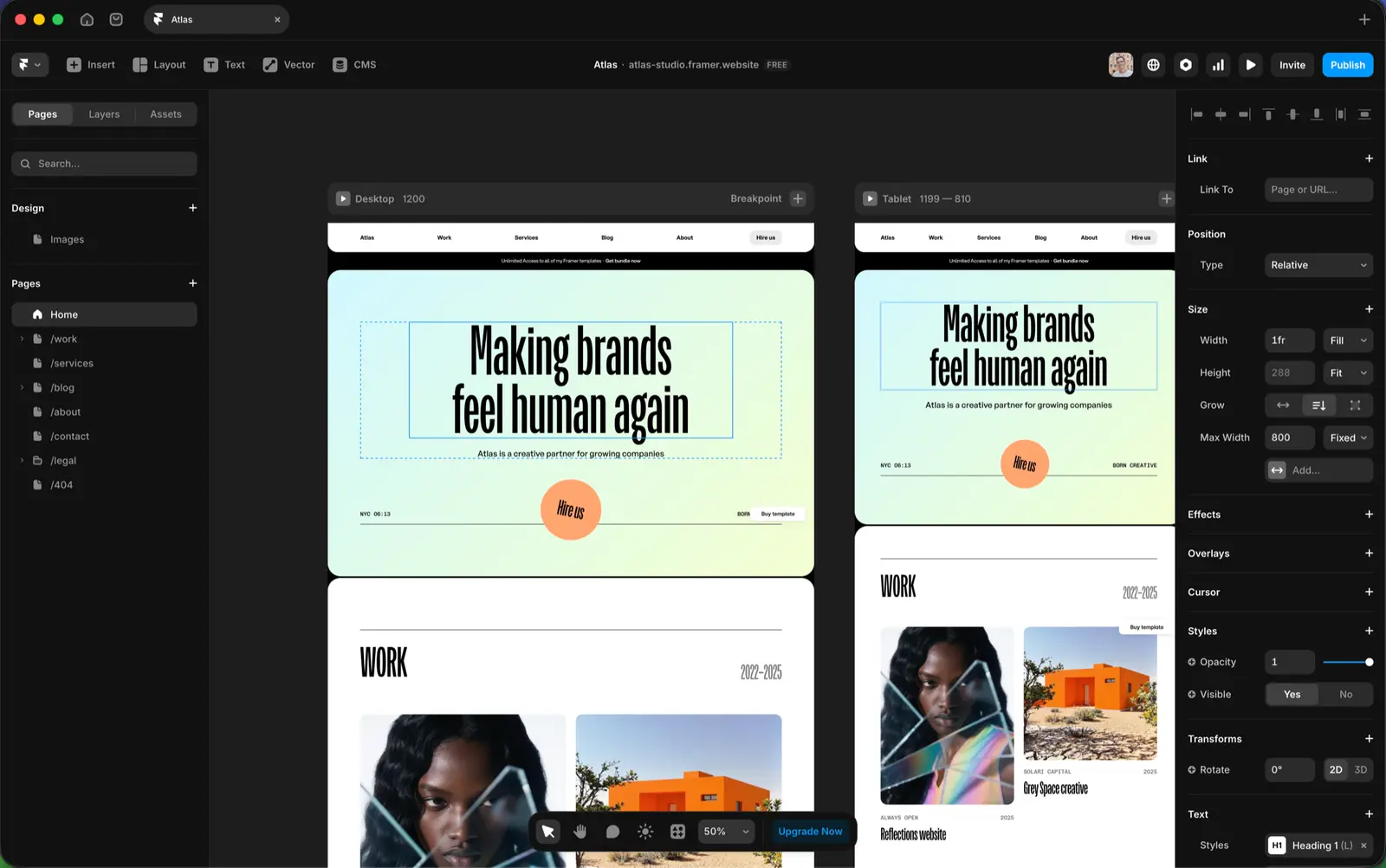
Every screenshot below is from Atlas Studio, one of my agency templates. Grab it if you want to follow along step by step.
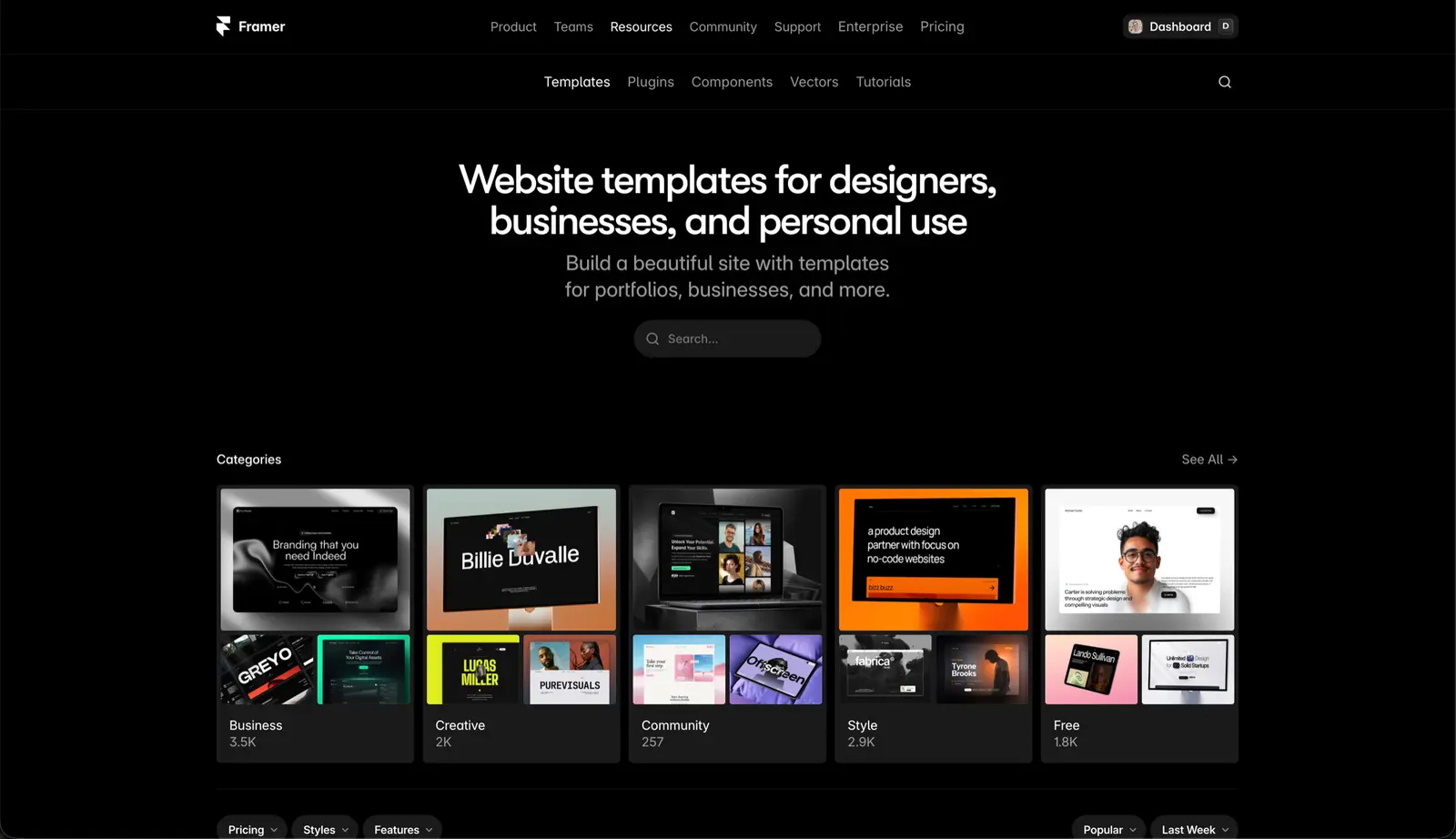
1. Pick the template for its structure primarily, not its style choices
This step happens before any customisation, but it decides whether the rest will be painful.
Colours change in a click. Images get replaced. Fonts swap out. None of that is the work.
The work is rebuilding sections that don’t fit your content. When you’re picking a template, look at structure:
Does it have a section for the kind of content you actually have? If you’re a copywriter with no portfolio images, a template built around full-bleed photography is the wrong starting point.
Is the navigation pattern right? A 7-link top nav can’t easily collapse into 3 without rebuilding it.
Are the components you need already in the template? Forms, FAQ accordions, pricing tables, testimonial sliders. If the template doesn’t have a contact form and you need one, you’re building it from scratch.
How fast is the demo on mobile? Open it on your phone. If it’s slow there, it’ll be slow on yours.
Don’t choose a template because the demo’s hero looks great. The hero is 5% of the work.
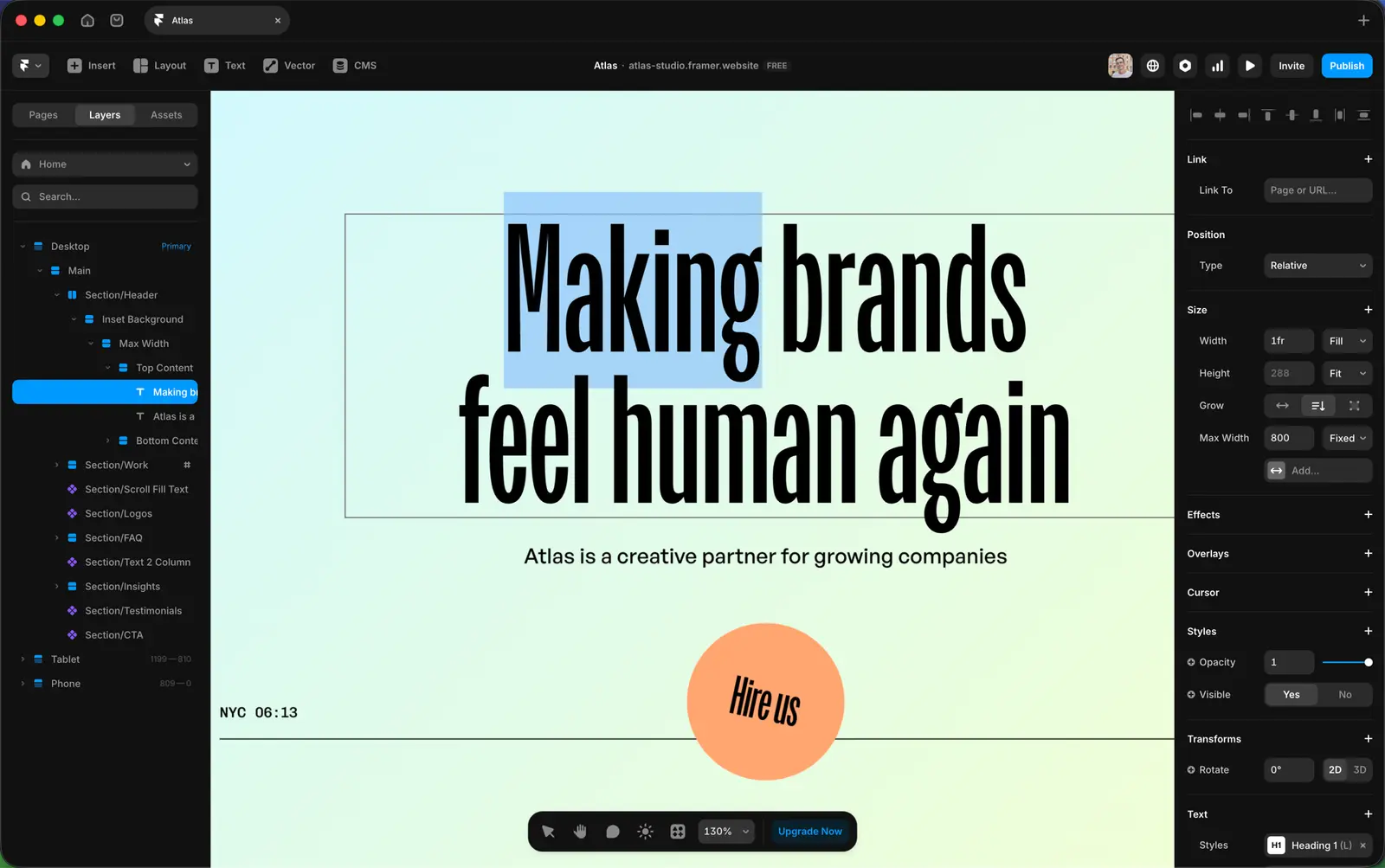
That’s the whole tool. Once you know which panel does what, every Framer tutorial starts making sense.
4. Content first. Everything else second.
Before you touch a single colour or font, replace every placeholder with your own copy.
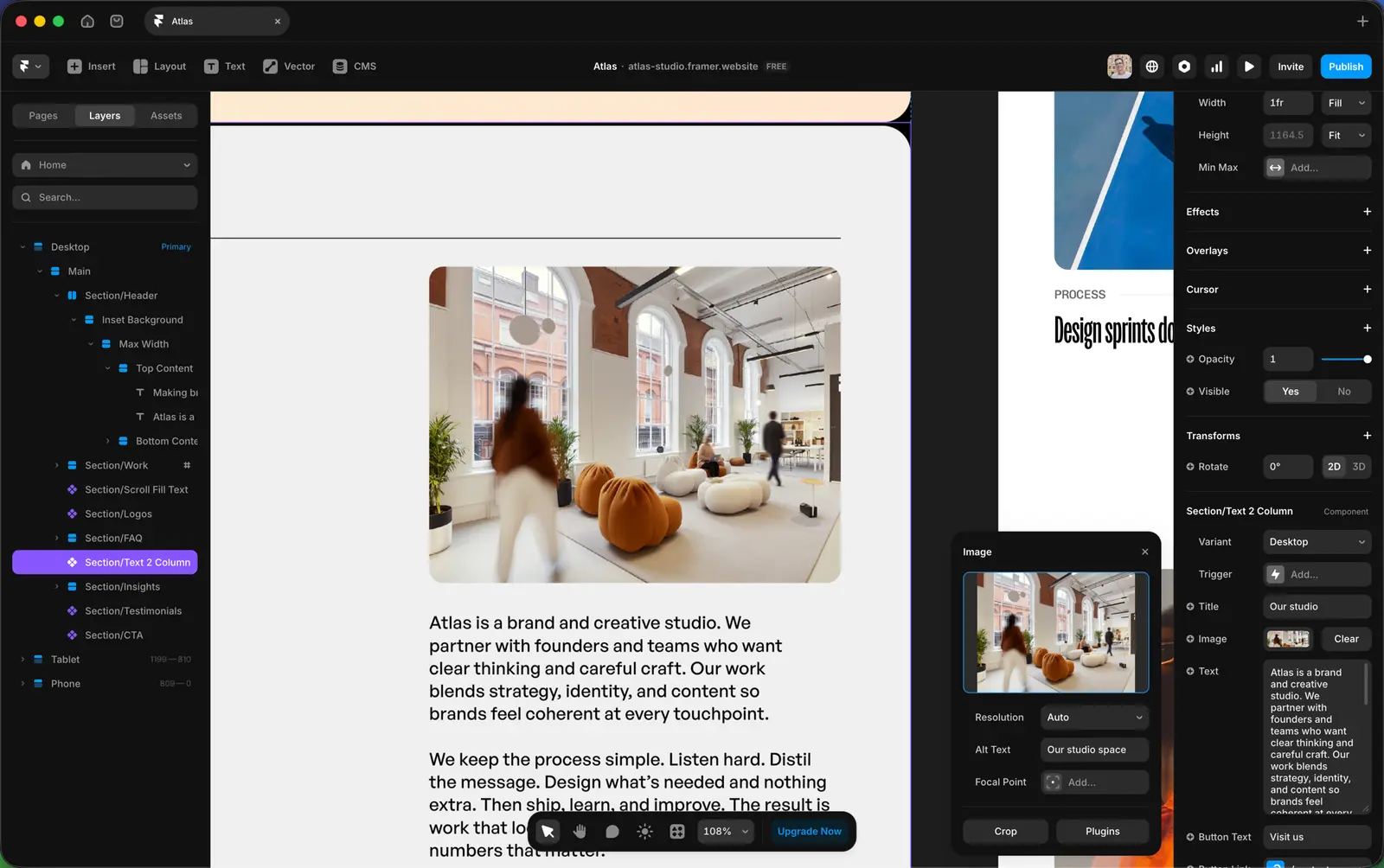
To edit text: double-click it. Type your copy. Click outside to commit.
To replace an image: click it once to select. In the right panel, find Replace Image. Upload your file or pick from Framer’s libraries.
Two reasons to do this first. Your copy is never the same length as the designer’s — “Modern design studio for ambitious brands” is 45 characters; your tagline might be 28 or 72. The layout was sized for the first one. You’ll only see where it breaks once your real copy is in.
And content changes decisions. Once your actual case studies are on the page, you’ll realise you don’t need the testimonial slider. Or the logo bar sits in the wrong place. Or the hero is asking for a different CTA.
Design decisions made without real content are guesses.
5. Brand colours and fonts — use variables, not fixed values
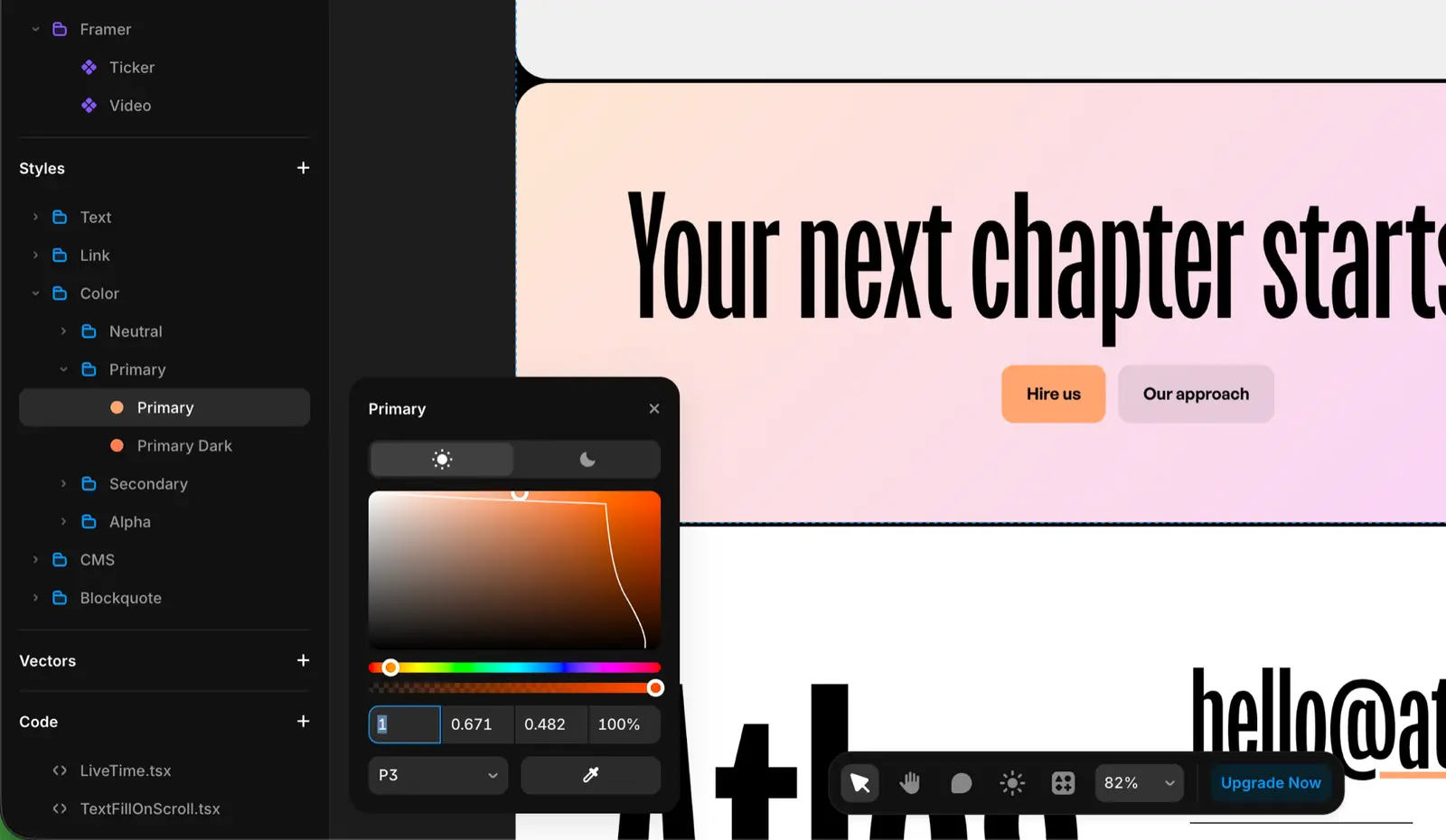
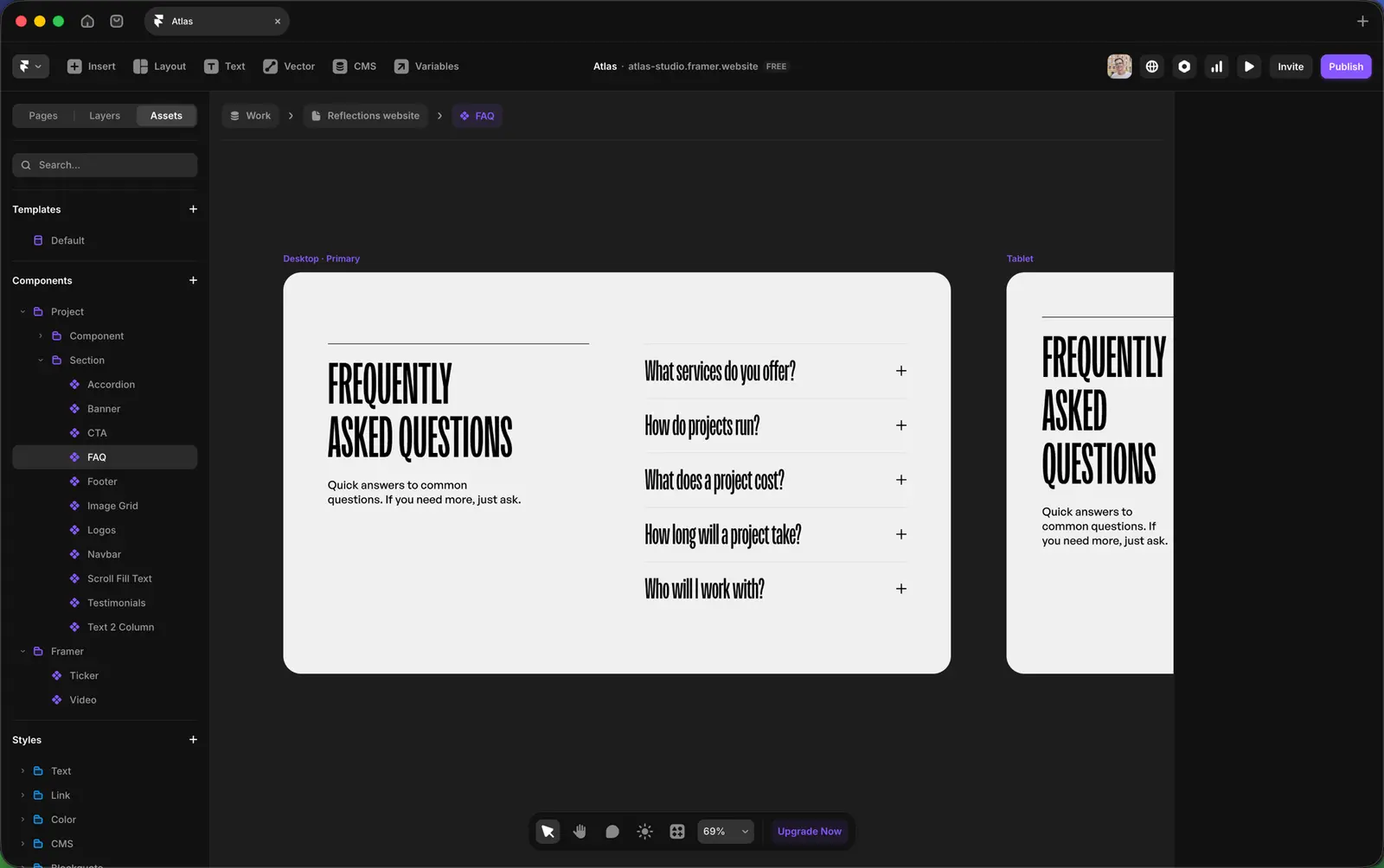
Good Framer templates use variables for all colours and typography styles. Find them in the Assets tab on the left before you edit anything.
To change brand colours site-wide: Left panel → Assets → Styles → Color. Each entry is a colour variable. Click one, change the hex, save. Every button, link, and accent that references that variable updates.
To swap fonts: Left panel → Assets → Styles → Typography. Each entry is a text style — H1, H2, body, caption. Click one, change the font in the dropdown, adjust size and weight if needed. Every heading or paragraph using that style updates.
Two or three font styles is the cap — usually one for headings, one for body, sometimes one for accents. Most templates ship with that already. Keep to it.
The trap: changing a colour or font on an individual element instead of the variable. It works in that one spot. Three weeks later when you add a new page, that element won’t match.
This is the single biggest difference between someone who customises a template well and someone who makes it look off.
6. Edit on desktop first
Framer cascades changes from desktop down to tablet and mobile. Not the other way around.
Edit a button on mobile and only the mobile version updates. The desktop and tablet versions stay where they were. Two weeks later you wonder why your buttons are inconsistent — you made the change at the wrong breakpoint.
Rule: do every edit at desktop, then check tablet and mobile. Override at smaller breakpoints only when you genuinely need a different layout there.
7. Images take more time than you think
Most of the time you’ll spend on a template goes to image work, not design changes. The design is mostly swap-and-save. The images involve sourcing, cropping, compressing, and making sure everything looks like it belongs to the same brand.
What you need to get right:
Crops — template images are sized precisely. Drop in a photo of a different aspect ratio and the layout shifts. Crop to the template’s dimensions before uploading.
Format — upload WebP where possible. Framer handles it well and you’ll save a second or two off page load.
File size — keep hero images under 300KB. A 4MB PNG will tank your Lighthouse score.
Consistency — if the template uses warm-tone photography, don’t mix in cold stock shots. The site will look like two different sites stitched together.
Spend longer on images than you think you need to. It’s the thing that separates a template that looks great from a template that looks like a template.
8. Pages — add, duplicate, rename, remove
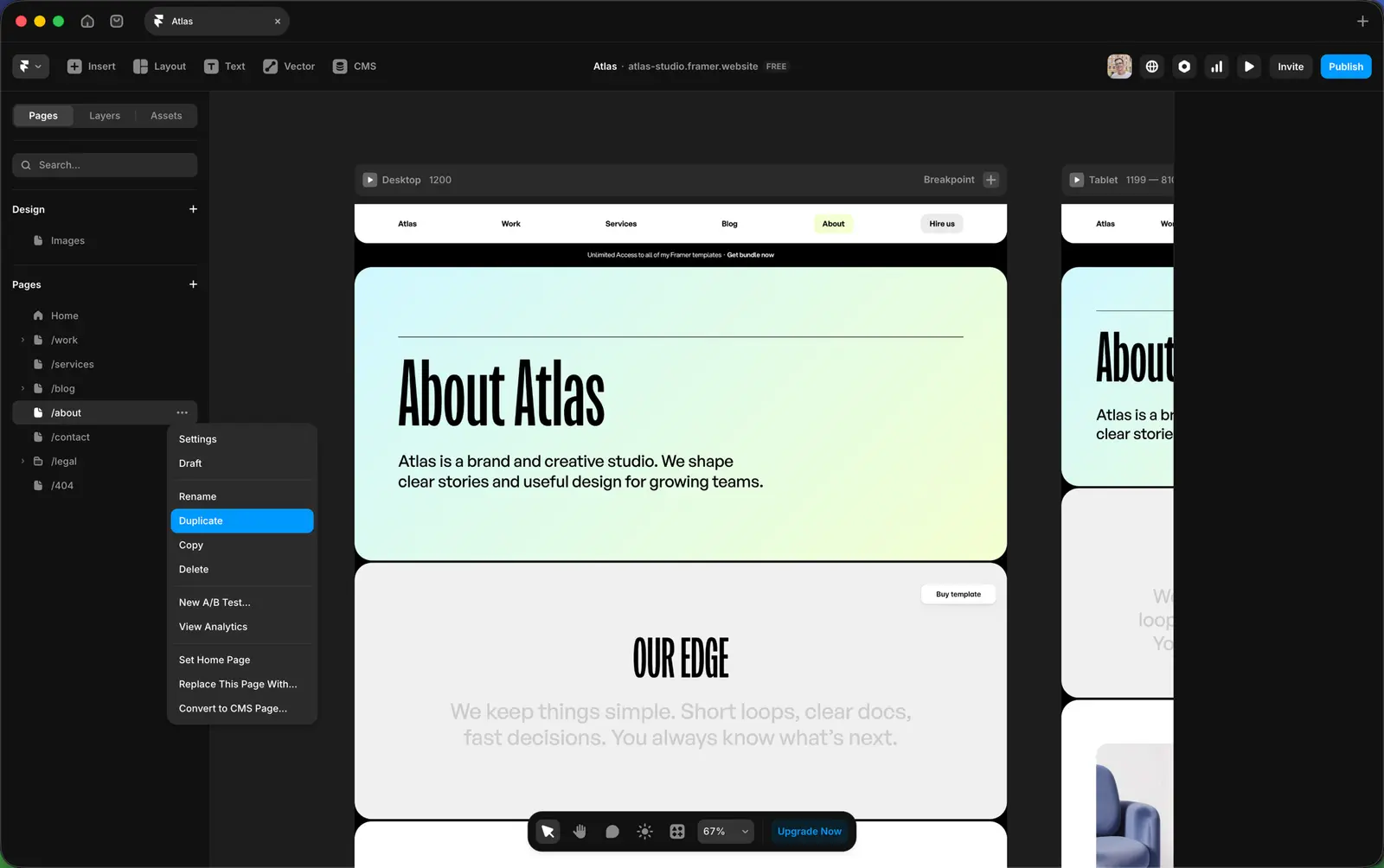
Open the Pages tab in the left panel. Every page in the site is listed there.
Add a page — hit the + icon at the top of the panel. Pick a blank page or duplicate one that’s close. Faster to start from a duplicate than from blank.
Rename a page — double-click its name. Framer auto-updates the URL slug.
Duplicate a page — right-click → Duplicate. The fastest way to add a localised version or an “About v2.”
Remove a page — right-click → Delete. The homepage can’t be deleted — Framer locks it.
If you delete a page, check anything that linked to it. Framer doesn’t warn you about broken internal links. Run through the nav and footer afterwards.
9. Sections — add, remove, hide
Sections are the building blocks of every page. Hero, features, testimonials, pricing, FAQ, CTA, footer.
To add a section: the best route is to drag one from Assets → Components. Most templates ship with a rich library of premade sections and components styled to match the rest of the site. Alternatively, hit CMD + K, search for the component, and insert.
Framer also has prebuilt sections in the Insert menu, but they won’t follow your template’s style out of the box — you’ll need to restyle them to match.
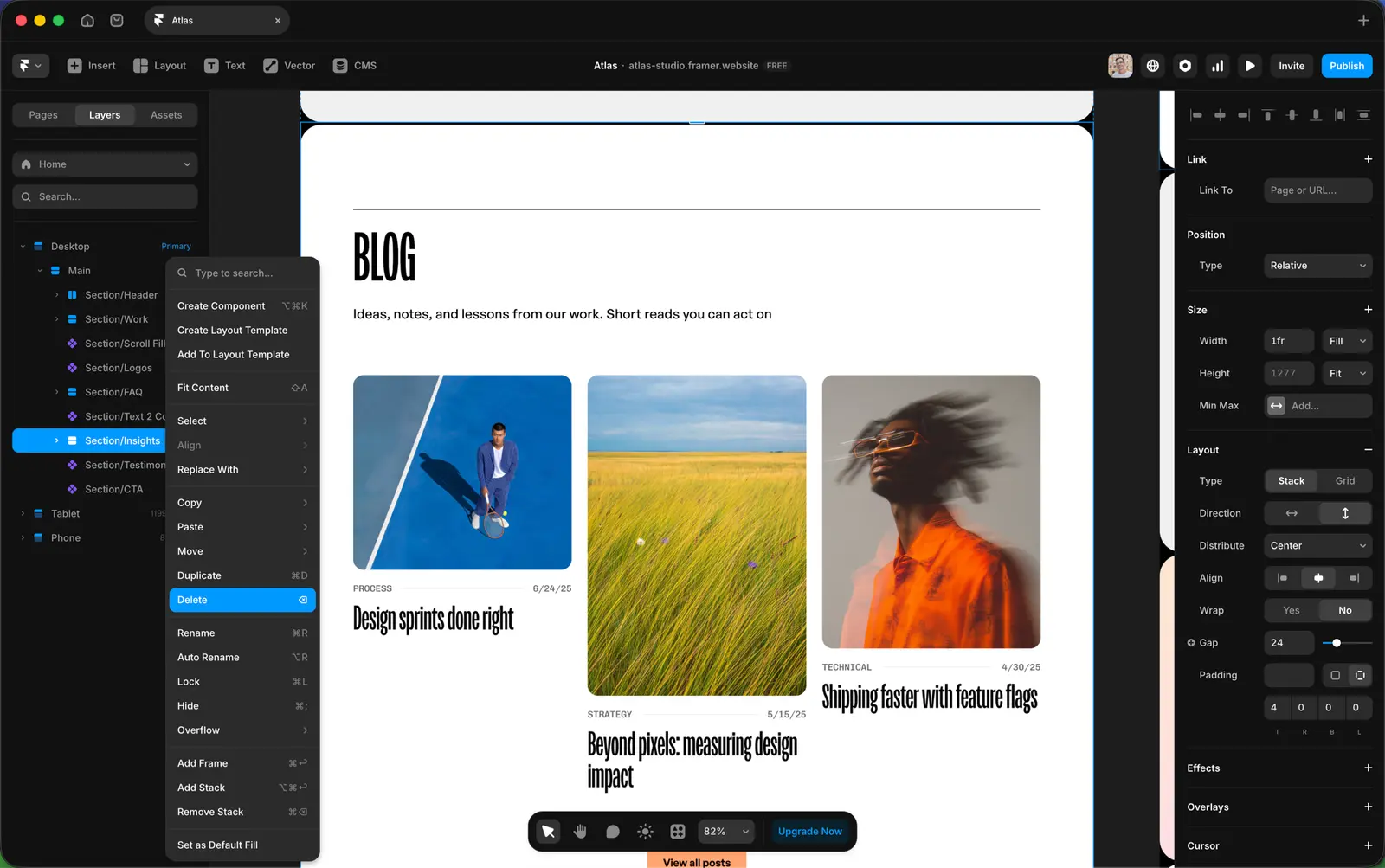
To remove a section: click its outer frame, hit Delete.
Hiding is also an option if you’d rather keep a section in the file but not show it on this page. Right-click the layer → Hide, or set Visibility: Hidden in the right panel.
One thing to know: if you delete a component instance from the canvas, you’re only removing it from that page. The component itself stays in Assets → Components and can be dropped back in anywhere.
10. The CMS — content versus structure
Every Framer template with a blog, case study section, or project gallery uses a CMS collection.
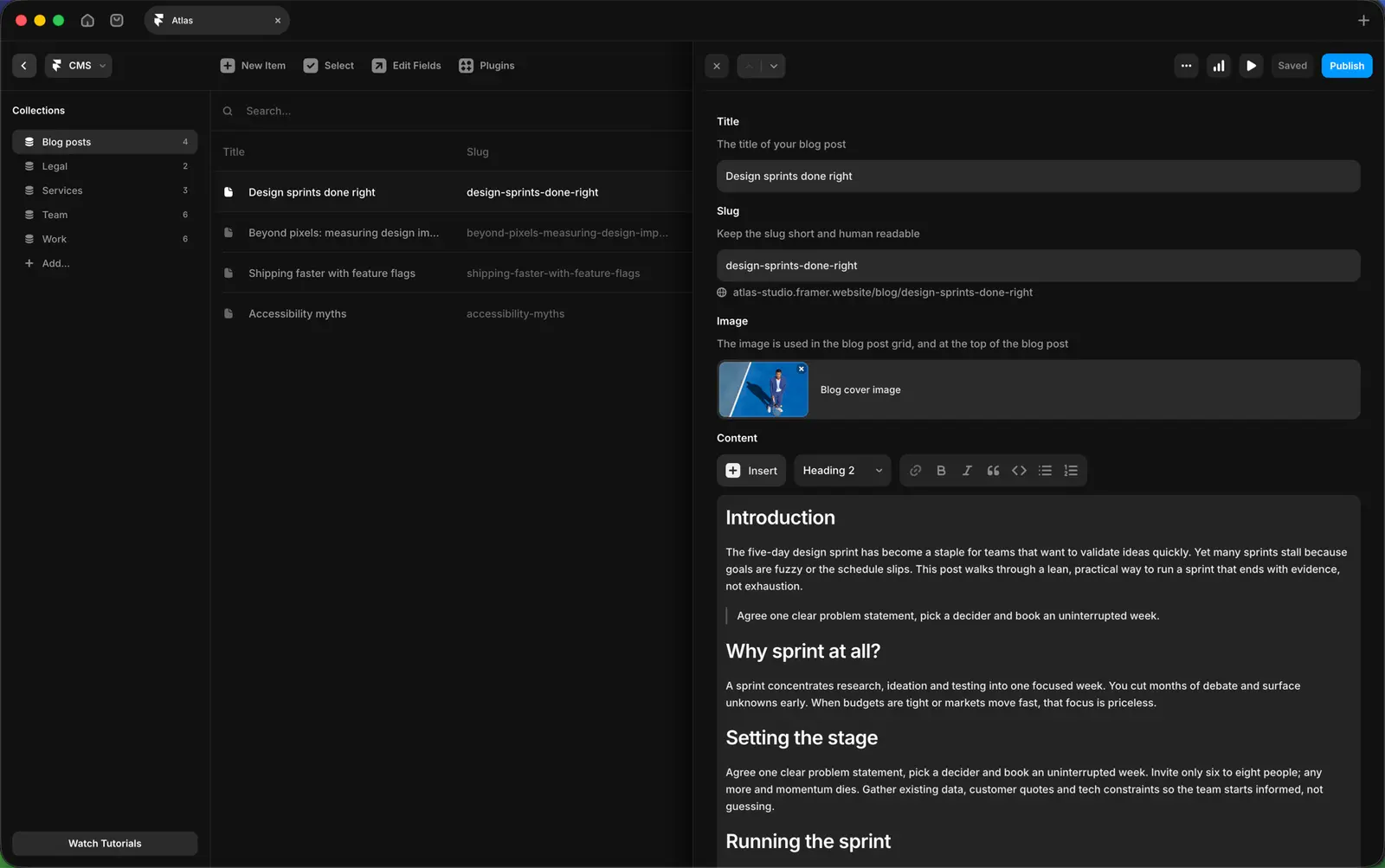
To open the CMS: top-left of the editor, click the CMS icon (it looks like a database). The panel lists every collection in the template.
The thing that confuses everyone: there are two layers, and you can edit either. The structure of the collection (what fields exist, how they’re arranged on the page template) and the content of an individual entry (the actual text and images for one blog post).
To add an entry — click the collection → New Entry. Fill in the fields.
To edit one entry — click the collection → click the entry → edit the fields on the right. This only affects that one entry.
To edit the structure — click the gear icon next to the collection name. Add, remove, or rename fields. This affects every entry.
If you want all your case studies to show a “client name” field that’s currently missing, you change the structure. If you just want to write a new case study, you add an entry.
Open the collection before you write your first entry. Look at what fields exist. Look at the listing page. Look at the detail page. Understand which fields appear where.
Skip this and you’ll spend an afternoon wondering why your new blog post isn’t showing up on the homepage. It’s always because the collection has a filter you didn’t notice, or a “featured” toggle that’s off by default.
11. Visibility tricks for CMS pages
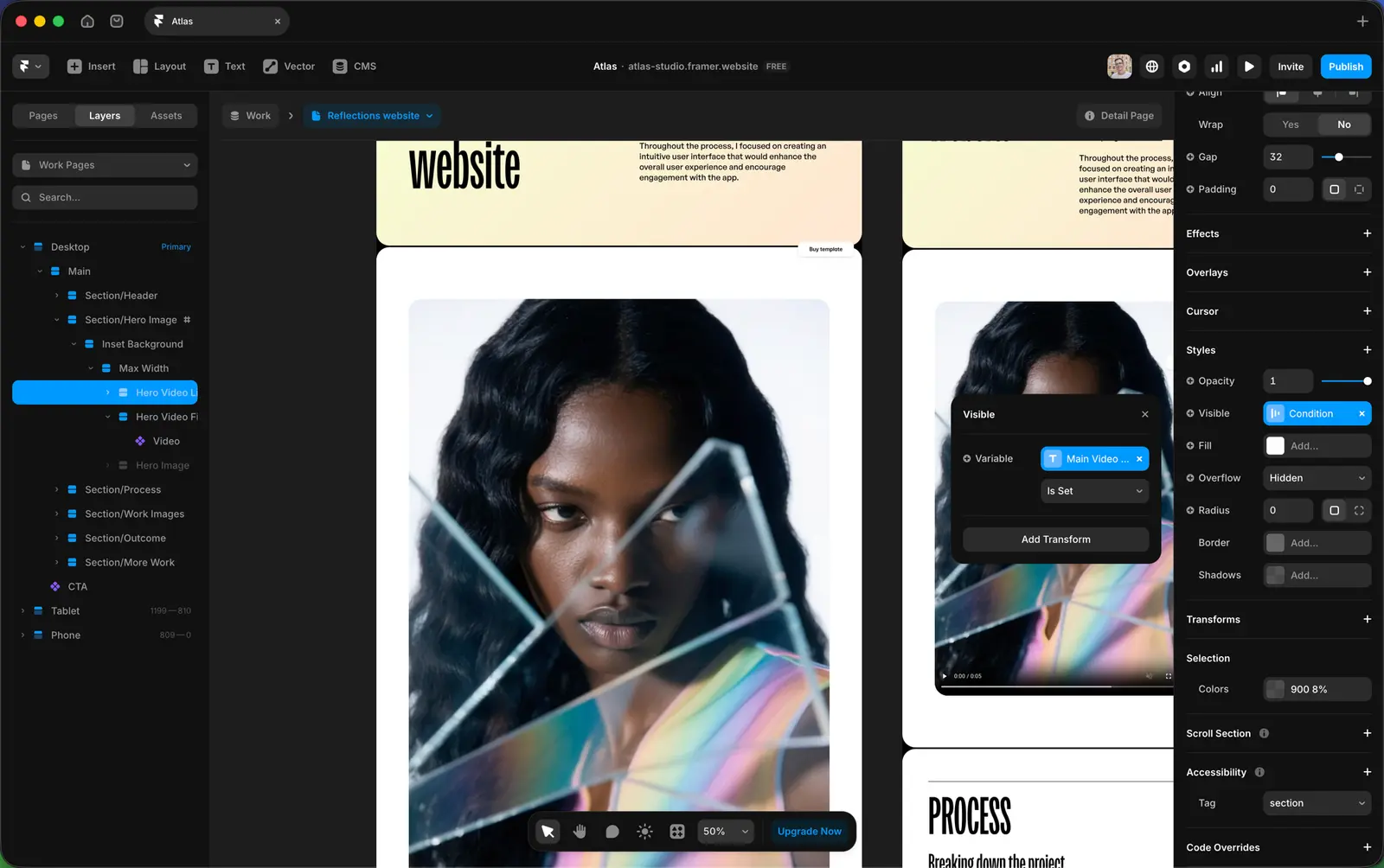
For CMS-driven pages like case studies or blog posts, you can set a section’s visibility based on a field in the collection. One page template then handles every variation, instead of you maintaining separate layouts.
On a portfolio template, some case studies might have a hero video while others only have an image. Add a video field to the collection and set the video section’s visibility to “Show if video is set.” Entries with a video show it; entries without it skip the section entirely.
The same approach works for a client-quote section (show if a quote exists), an awards row (show if awards are listed), or a “featured” toggle that drives which entries appear on the homepage grid.
Framer’s conditional visibility supports operators like is set, is not set, equals, and greater than — enough to cover most real-world cases without building two page templates.
12. Components — find what repeats before you edit anything
Good templates are built from components. Navigation, footer, buttons, cards — each defined once, used everywhere. Components are identified by a purple icon in the layers panel and a purple outline on the canvas when selected.
Before you edit any component, double-click it to enter the master. Editing an instance only changes that one place. Editing the master updates every instance.
Need a white button on a dark section? Make a variant of the component. Don’t override it locally and don’t duplicate the whole component.
13. Forms — the small thing that breaks silently
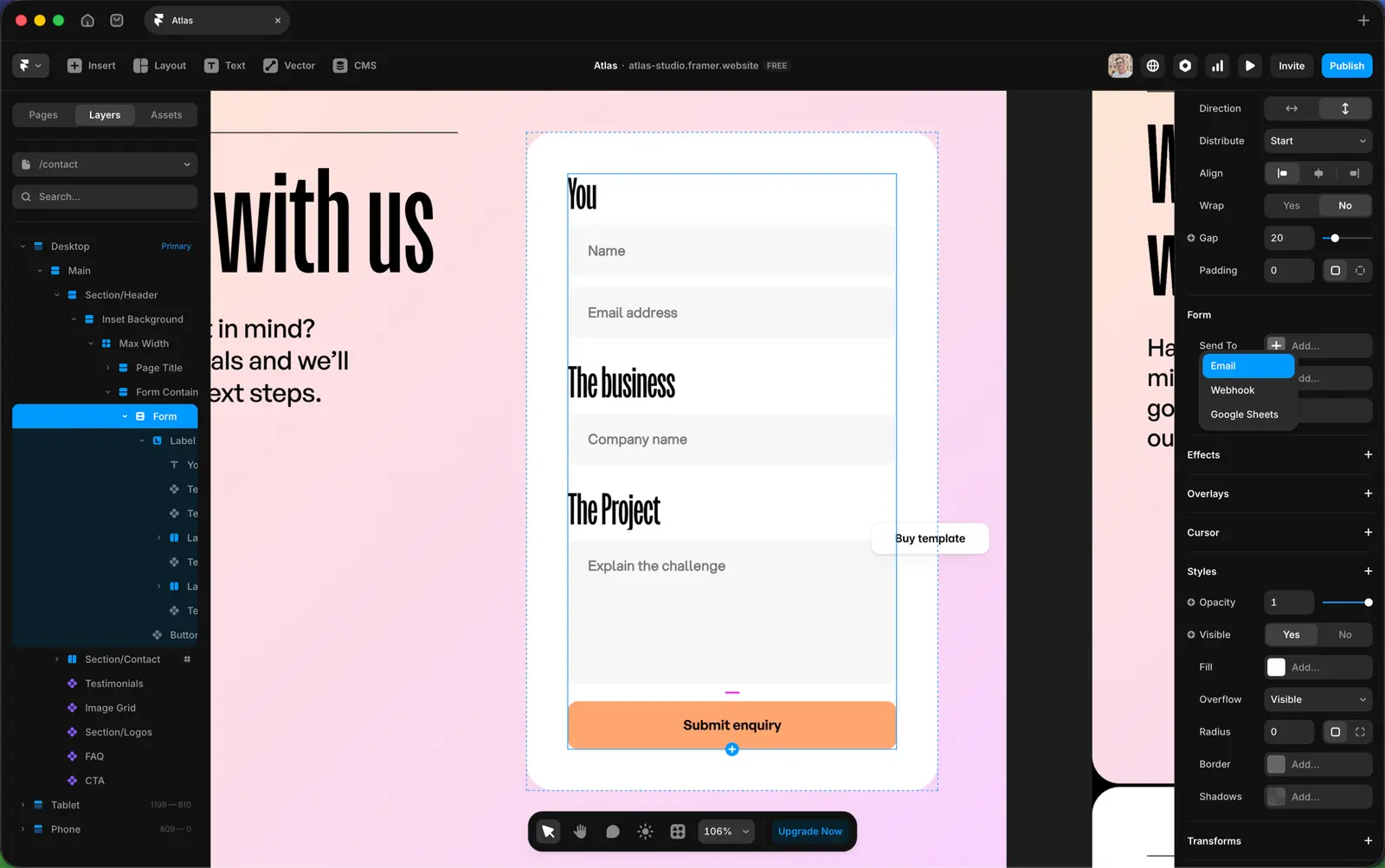
Most templates ship with a contact form already wired up. Most people forget to point it at their own email.
In the form’s properties, find “Send To” and put your address in. Then send a test submission from the published site. I’ve seen Framer sites live for six months before anyone noticed the form was still going to the template designer’s inbox.
14. Test every change at three breakpoints
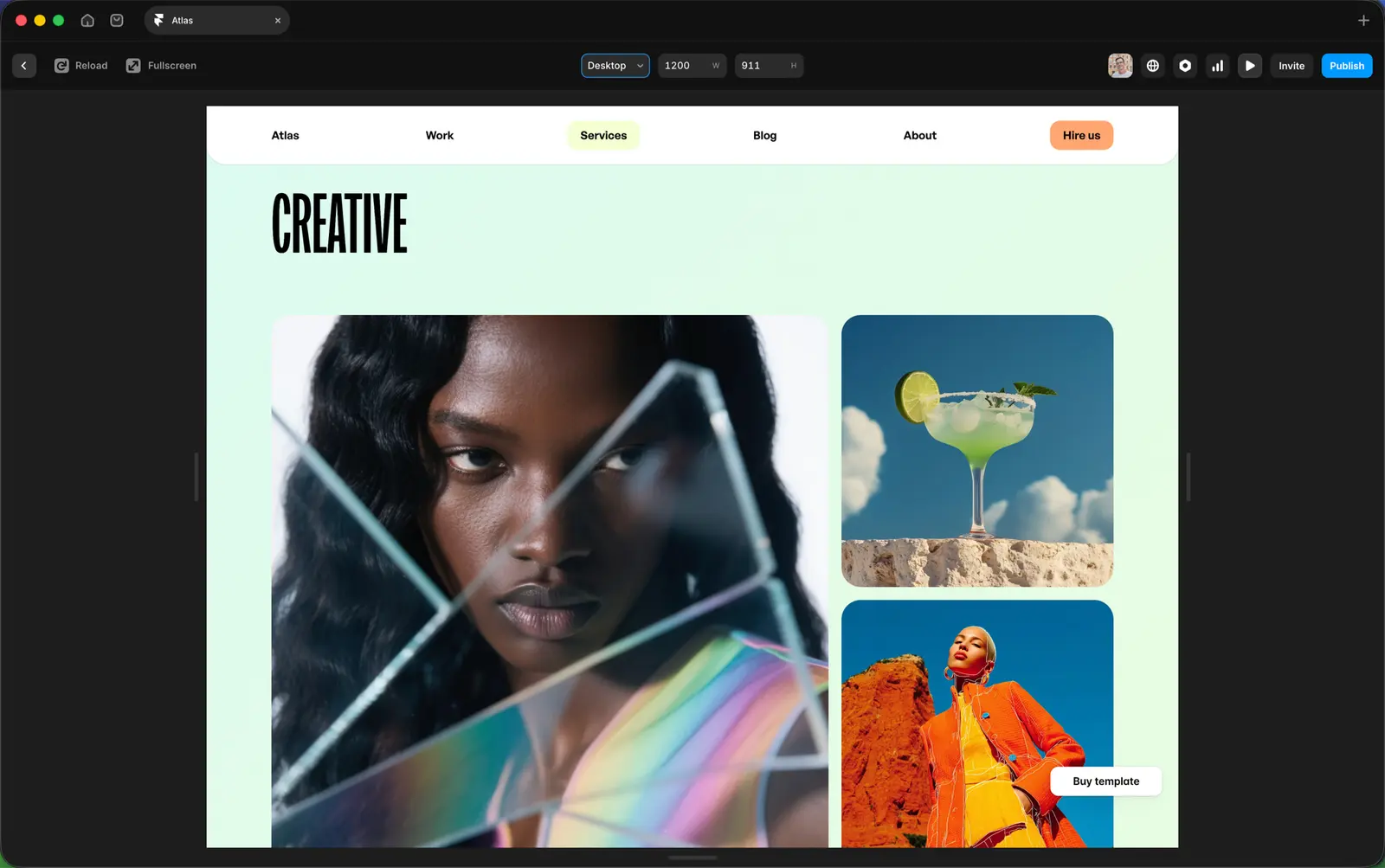
Preview → Top toolbar → switch between Desktop, Tablet, Mobile.
Check all three after:
adding longer or shorter copy
inserting a new section
replacing an image with a different aspect ratio
removing an element
Mobile matters as much as desktop — arguably more, since most visitors land on phones first. Check every change at every breakpoint before moving on.
15. The pre-launch checklist
Run this before you publish. Five minutes per page.
Page title — 55–60 characters. Format: [Page name] — [Brand]
Meta description — 150–160 characters. Active voice, no hedging.
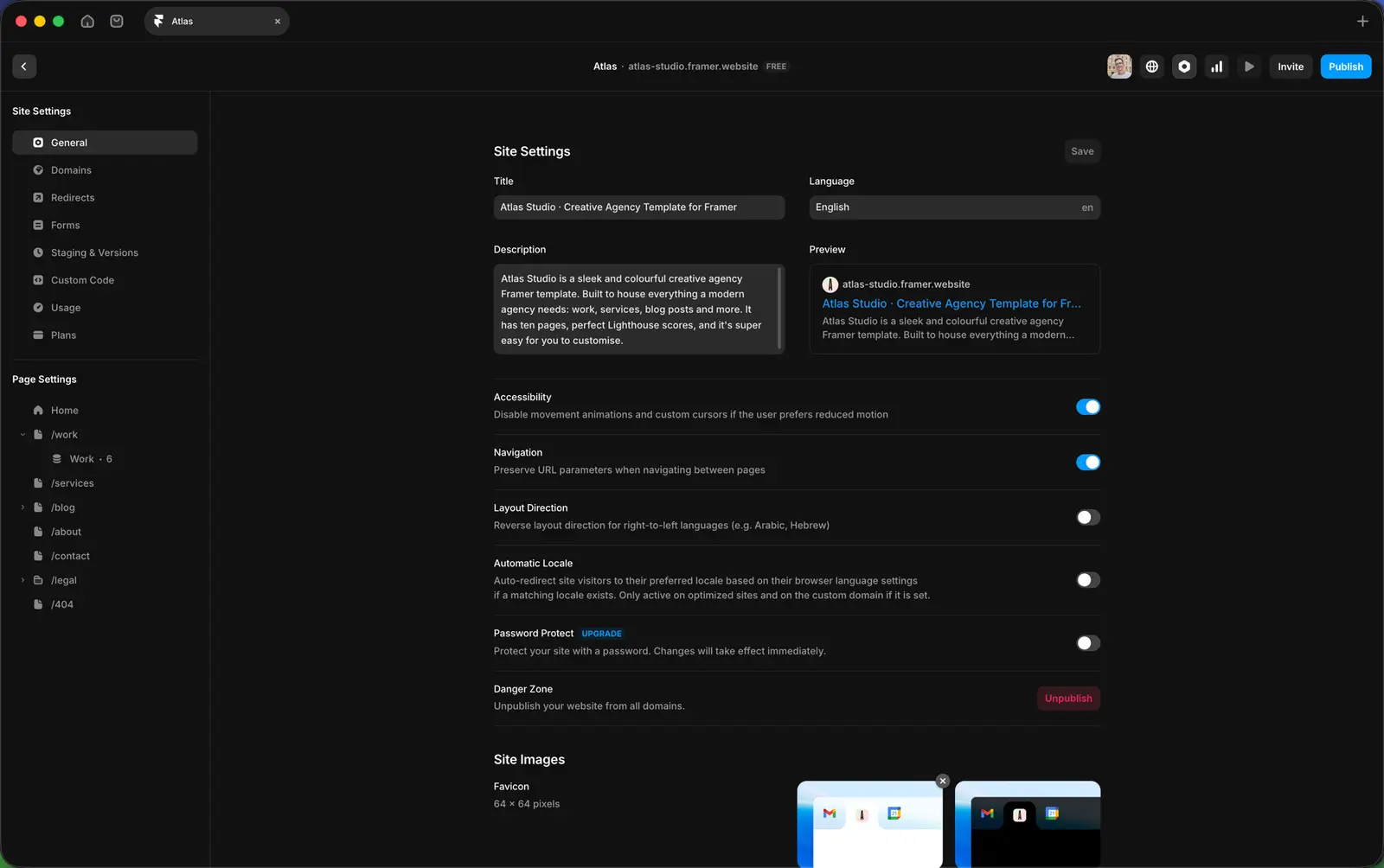
OG image — 1200×630, your own. Many templates store the editable OG image on a dedicated Framer Design page — check there first.
Alt text — every image. One sentence. What’s in the picture, not what it represents.
Favicon — most templates ship with a placeholder, often also on a Design page. Replace it there.
Form test — submit from the live site. Check it lands in your inbox.
Mobile pass — open every page on your phone. Tap every link. Read every block.
Analytics — Plausible, Datafast, GA4, whatever you use. Wire it up before launch, not after.
404 page — most templates include one. Check it’s branded and links back to your homepage.
16. Publish
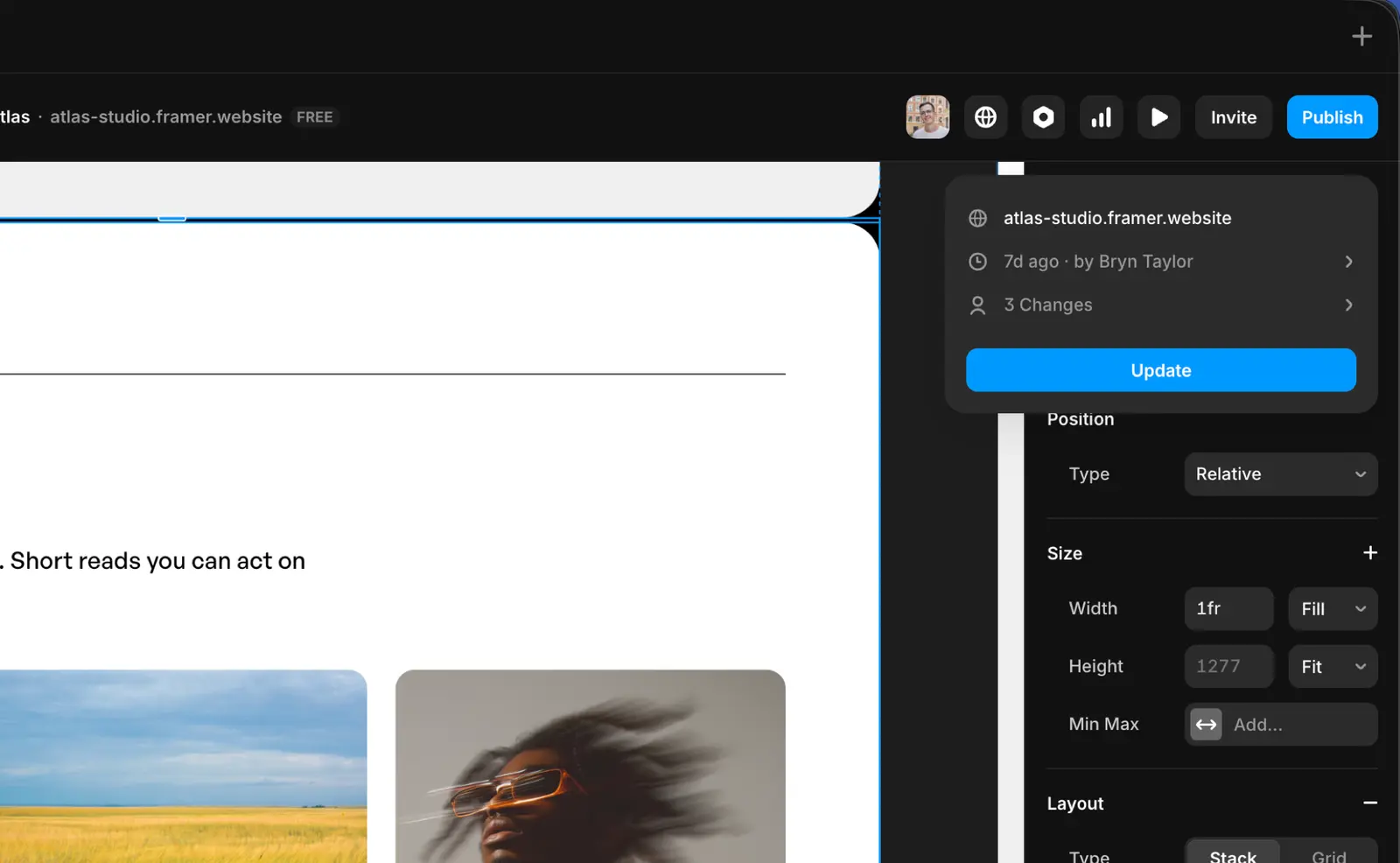
When you’re done, publish. Framer gives you a free yoursite.framer.website subdomain by default. For a real site, point your custom domain at it. That needs a paid Framer plan, and Framer’s docs walk you through the DNS records.
The instinct to keep tweaking past publish is normal. Resist it for the first week. Look at how the site actually performs before changing anything else.
When to stop
A customised Framer template is done when:
every placeholder is replaced
colours and fonts reflect your brand
images are yours and on-brand
the site works at all three breakpoints
the pre-launch checklist is ticked off
That’s it.
If the customisation starts feeling like redesign — rebuilding navigation, restructuring the homepage, reworking the component system — the template probably isn’t the right fit for what you’re building. Better to spot that early and pick a different template, or bring in a designer to go custom from there.
The reverse test
Here’s the one I give clients. Look at your customised template next to the original.
Can you tell it’s the same template? If yes, you’ve probably under-customised — the colours and content aren’t yours enough yet.
Is it unrecognisable? You’ve over-customised. You spent money on design work you then threw away.
The right answer is: clearly the same template, but every surface feels like it belongs to you. Which is the state to aim for.